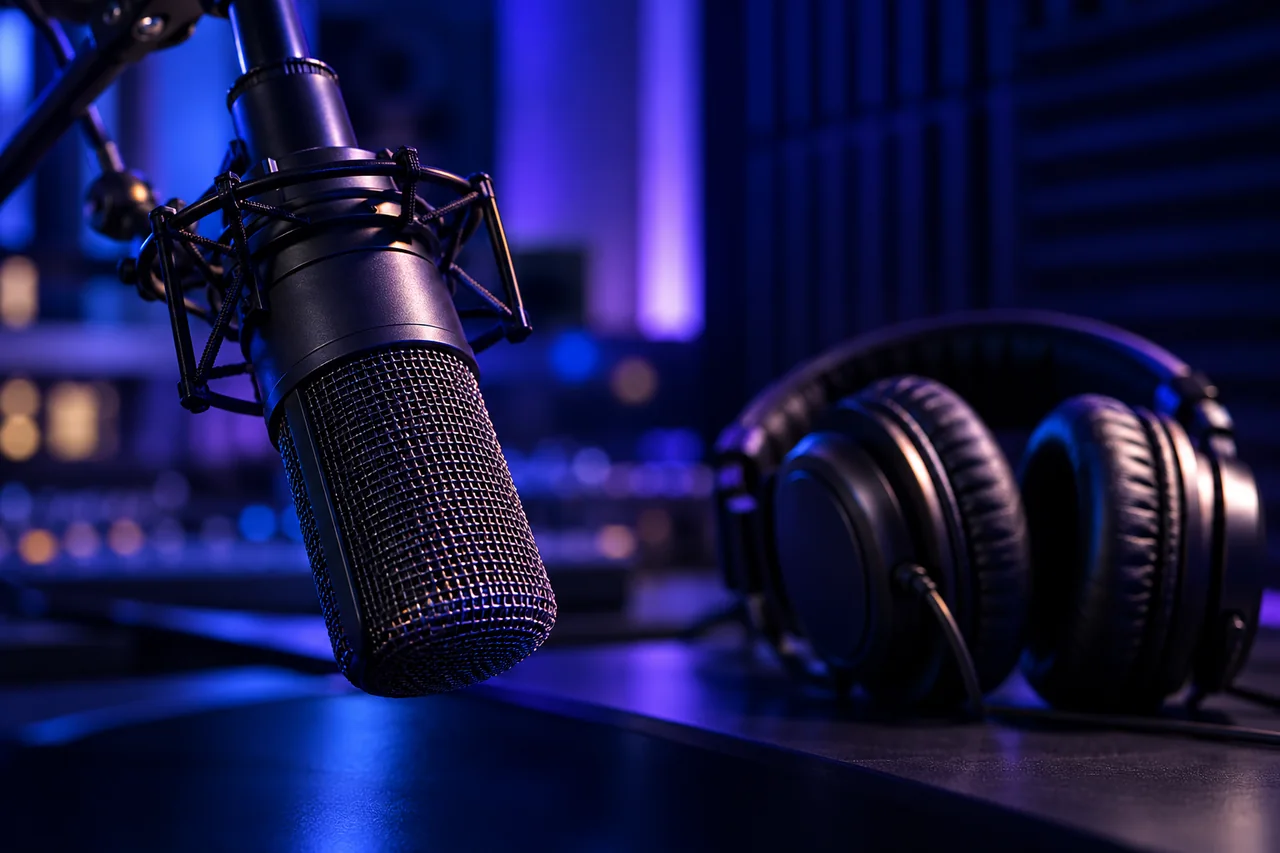
Native audio is useful when the sound belongs to the action. Specify who speaks, what makes each sound, and the atmosphere around it; keep exact music and final mix decisions in your editor.
Make sound part of the idea
A key turning in a lock, a cup landing on a saucer, or a character delivering one short line can make a generated scene feel complete. Native-audio video models create the moving image and its soundtrack in the same generation, giving you a way to direct those moments together.
This is particularly useful for short narrative beats, product demonstrations, atmospheric cutaways, and dialogue sketches. Think in terms of an audible event rather than “add cinematic sound.” Decide what the audience should hear first, which sound belongs to a visible action, and what should remain quietly in the background.
Two practical starting points
Kling 4.0 provides a UI route with native audio, two-channel stereo, and dialogue in several languages. Its current user guide lists three- to thirty-second generation and 720p, 1080p, or 4K output. Omni Reference is the convenient entry point for a concept or reference-led scene. Audio-visual synchronization is enabled by default.
For an API workflow, Gemini Omni Flash, model identifier gemini-omni-1.1-flash, generates video with audio and supports conversational video edits through the Interactions API. Use it when generation and revision belong inside your own tool. Its current API does not support uploaded audio references or voice editing, so choose it for generating a scene’s sound rather than reproducing a supplied recording.
A benchmark-backed API starting point
For an API-based scene with generated sound, Gemini Omni Flash 1.1 is a useful starting candidate: our October 21, 2026 snapshot of Artificial Analysis’s text-to-video-with-audio board records 1132 Elo, with a 95% interval of 1117–1147 and 6,143 samples. That result evaluates audiovisual text generation, not every editing feature. Google’s documentation supplies the separate workflow reason to choose it: conversational revisions through the Interactions API. Switch to picture-first generation plus a separate audio edit when the narration or music is already approved.
The video evaluation snapshot keeps the silent and audio-enabled pools separate, with sample sizes and uncertainty.
Buy access to the route you will actually use
For a metered API workflow, choose gemini-omni-1.1-flash on the paid tier of the Gemini Developer API. Google's pricing page links an AI Studio entry for trying the model; the production generation and revision route is the Interactions API. Do not substitute a consumer Gemini subscription for this API billing setup.
Standard video output costs US$17.50 per million tokens. At Google's stated 5,792 tokens per second of 720p video, ten seconds is approximately US$1.01 in video-output charges, before input and any text-output usage. Three generated alternatives therefore cost about US$3.04 for video output alone. Budget the alternatives you need to hear, not just the clip you eventually keep. The older gemini-omni-flash-preview endpoint closes October 22, 2026; use the 1.1 identifier for new work.
Choose the reference mode around the voice
For a recurring speaker with an authorized voice reference, Kling's Omni Reference mode accepts up to three voice profiles per task, created from 5–30 seconds of audio. Keyframes accepts images only, and the two entry modes cannot be combined in one task. If both an exact visual endpoint and a recurring voice matter, decide which control leads the generation and finish the other requirement separately.
For generated dialogue that will continue into another shot, keep the Gemini interaction ID and stored interaction. Google's extension guidance supports further speech through multi-turn extension of generated videos, but not adding dialogue by extending an uploaded talking clip. Setting store=false also removes the previous-interaction editing route. Preserve that revision path when the first scene is a draft rather than a final delivery.
Separate the brief into audible layers
Google’s video prompting guide distinguishes effects, ambience, and dialogue, and recommends separate sentences for audio direction. Turn that into a compact production brief:
- Visible action: what happens and when the important beat arrives.
- Dialogue: the speaker, exact line, language, delivery, and any pause.
- Sound effects: the specific sound tied to an action, such as one latch click.
- Ambience: the continuous setting, such as distant traffic or a quiet room.
- Music: whether it belongs in the scene and how prominent it should be.
You do not need every layer. A single clear effect against a quiet background can communicate more than dialogue, music, and a dense collection of noises competing for attention.
Example: a product moment with synchronized sound
Example prompt: “A close view of a desk lamp on a wooden table. A hand presses the switch once, and the warm bulb lights up. The camera remains still. Audio: one soft mechanical click at the button press, followed by quiet room ambience. No dialogue or background music.”
This brief has one visual event and one corresponding sound. The click helps the viewer understand the action, while the quiet background leaves space for it. Review the instant of contact, the light turning on, and the click as a single beat. If they feel disconnected, simplify that moment before adding another action.
Example: a short spoken scene
Example prompt: “An adult shopkeeper stands behind a small flower stall, holding a wrapped bouquet. In one continuous shot, they look toward the customer and say in warm, unhurried English: ‘These opened this morning.’ They smile after speaking. Audio: the voice is clear and close, with soft paper rustling and distant street ambience. No background music or subtitles.”
Keep the line short enough to speak comfortably, with room for the expression afterward. Kling’s dialogue guidance recommends quotation marks around the words in the intended language. Describe the delivery instead of leaving the model to infer it from the visual mood. Read the line aloud before generating to decide whether the selected duration fits.
Example: atmosphere without a narrator
Example prompt: “A continuous slow approach toward an open greenhouse door after rain. Water drops fall from the roof edge into a shallow puddle. Audio: individual drops close to the camera, a gentle breeze through leaves, and faint birds outside. No speech or music.”
This is a useful approach for an establishing shot or a transition between spoken sections. Sound gives the location depth without making the viewer process extra information. Listen for whether the nearest event feels prominent and the background remains background. A louder soundtrack is not necessarily a more convincing place.
Build the scene, then make targeted revisions
In Kling 4.0, choose Omni Reference, add the relevant image if you have one, and state its role. Set duration, ratio, and resolution before generating. Write your audio instructions alongside the scene brief. The guide distinguishes voice-profile inputs from music and effects: the latter are generated from the scene and prompt, not uploaded as soundtrack references.
For Gemini Omni Flash, retain the interaction ID if you want follow-up video edits. Its stateful editing workflow uses the previous interaction to revise the generated clip without uploading it again. Keep requested changes narrow, such as changing the lighting or background. For a different voice or an exact audio mix, return to a new generation or finish the sound separately.
Choose separate audio when control matters more
Native audio is one route, not a requirement for every project. If you already have approved narration, a licensed music track, or an exact sonic logo, build the picture around that material and assemble the soundtrack in an editor. That keeps wording, music timing, and mix decisions independently editable.
A silent generator can fit this workflow well. Pika 2.5, for example, returns silent clips. You can select the visual take first, then add the approved voice, effects, and music. This is also practical when one picture edit needs several language versions.
Review the whole audiovisual beat
Listen once without watching: is every word understandable, and does the background support the scene? Then watch with sound: check speaker attribution, mouth movement, impact timing, and the beginning and end of each sound. Review on headphones and the small speakers your audience is likely to use.
Trim with the audio in mind. Cutting a clip at the strongest image can still interrupt a word or remove the tail of a sound. Finish captions from the actual spoken line, balance levels in the final edit, and export a version that preserves the intended soundtrack.
Choose the current access route
For Google, use the current video model guide, not an old Veo tutorial: Gemini API Veo 3.1 Preview endpoints close on October 22, 2026. Google points new work toward Gemini Omni Flash or separate Cloud GA models. Cloud Veo 3.1 supports sound but has its own availability and lifecycle. Sources reviewed October 21, 2026.
Before you choose a tool
- Define the output you need before comparing plans.
- Save the inputs, settings, date, and rejected results.
- Check current provider terms and export restrictions.
- Include correction time in your comparison.
Sources
Official sources reviewed 2026-10-21.
- Kling: Kling 4.0 User Guide ↗
- Google: Generate and edit videos with Gemini Omni Flash ↗
- Google Cloud: Video generation prompt guide ↗
- Pika: Pika 2.5 model page ↗
- Google: Video generation in the Gemini API ↗
- Google Cloud: Veo 3.1 model specifications ↗
- Artificial Analysis: AA-Video-T2V v2.1, Overall, with audio ↗
- Google: Gemini Omni Flash paid-tier pricing and preview retirement ↗